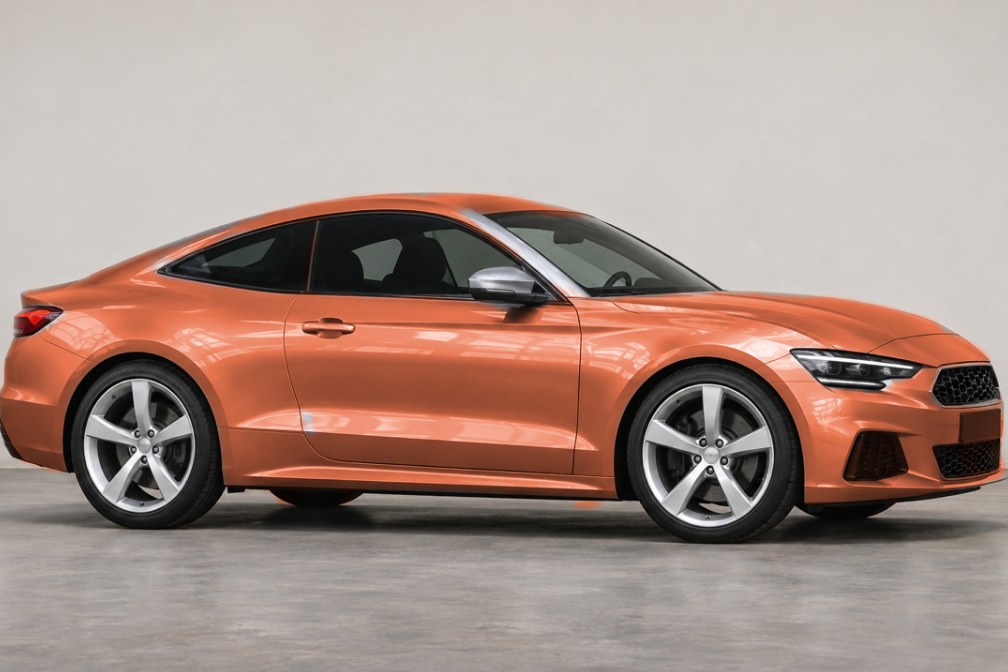
Start with a color direction
Decide on a warm, cool, or neutral direction before comparing lighter and darker variations.
Keep the photo unchanged so you can judge each shade against the same glass and trim.
Read the light
Even lighting is a useful starting point. Strong reflections and deep shadows affect how a color appears.
Check highlights, creases, and shaded panels, rather than judging the result from one flat patch.
Refine the selection
Inspect windows, lights, and wheel arches. Correct the body selection where paint meets other surfaces.
Return to the full car view and check that reflections and panel details remain readable.
How to get started
Choose a photo
Import a clear, unobstructed car photo in the iPhone app.
Compare shades
Adjust your target color and inspect the selection edges.
Keep an idea
Compare with the original, then save your preferred edit.
Before you make it yours.
Will the paint look exactly like this?
Lighting and screens affect color. Use the preview to shortlist shades, then check physical samples.
Why does color spill past an edge?
Check for background included in the body selection, then refine the boundary and compare again.
Is CarRim free to use?
Free to download and use. The free service is supported by ads, and some exports may require watching a rewarded ad; ad removal is an optional purchase. Check the App Store for version 3.0 download availability.